For me, 100% customer satisfaction is both a concern and a promise to you."


In my general guide to Google Tag Manager, you’ve already learned the basics.
Now I’ll show you how to integrate Google Analytics over it on your website relatively easily.
We have already learned that Google Tag Manager works with so-called tags. Now, to install Google Analytics, we need to select the correct tag.
There are now several tags to choose from:
Now, to install Google Analytics with the GTM, we select either the Universal or GA4 configuration tag.
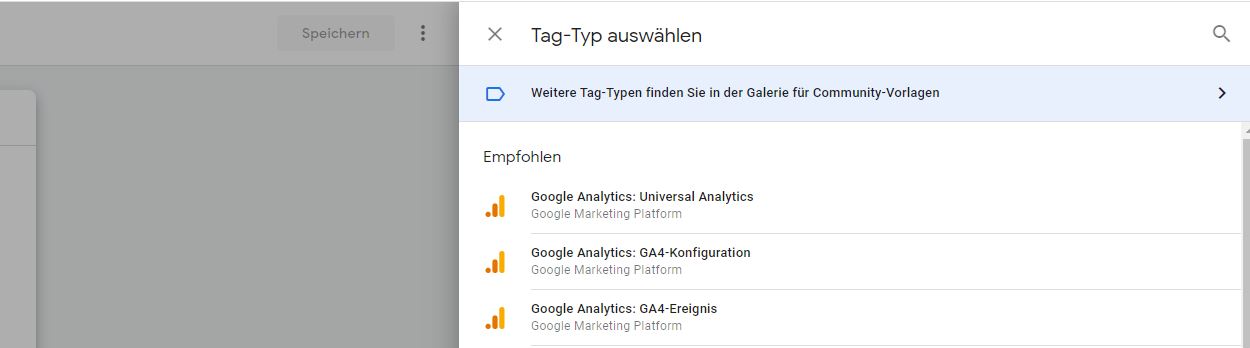
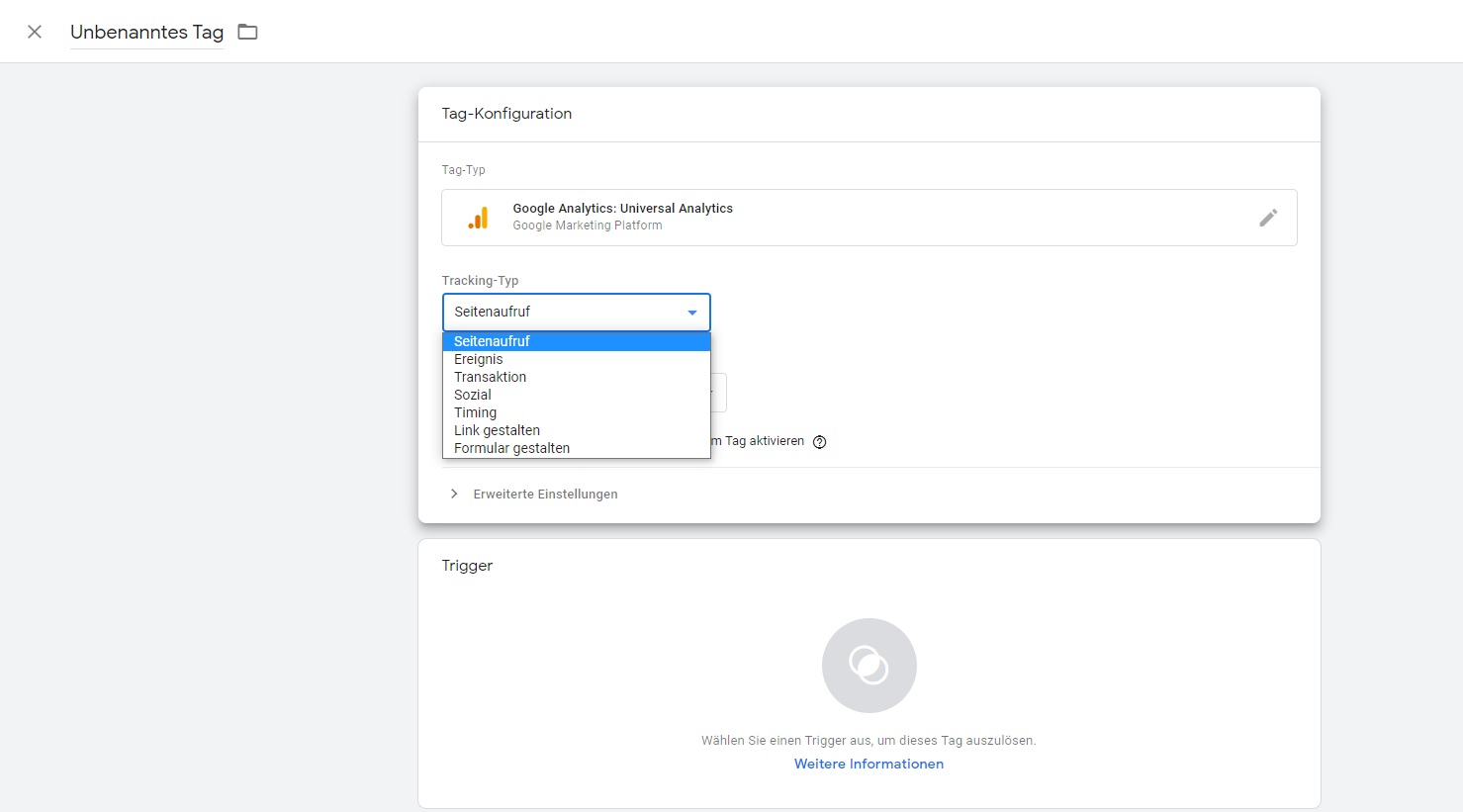
I chose to use the Universal Analytics tag in this guide.
To learn how to install GA4, you can use this GA4 Guide.
Now the following steps have to be done:
By selecting this type, you are telling Google Tag Manager that you want to track all page views. That is, all visitors that match the selected trigger of the tag.
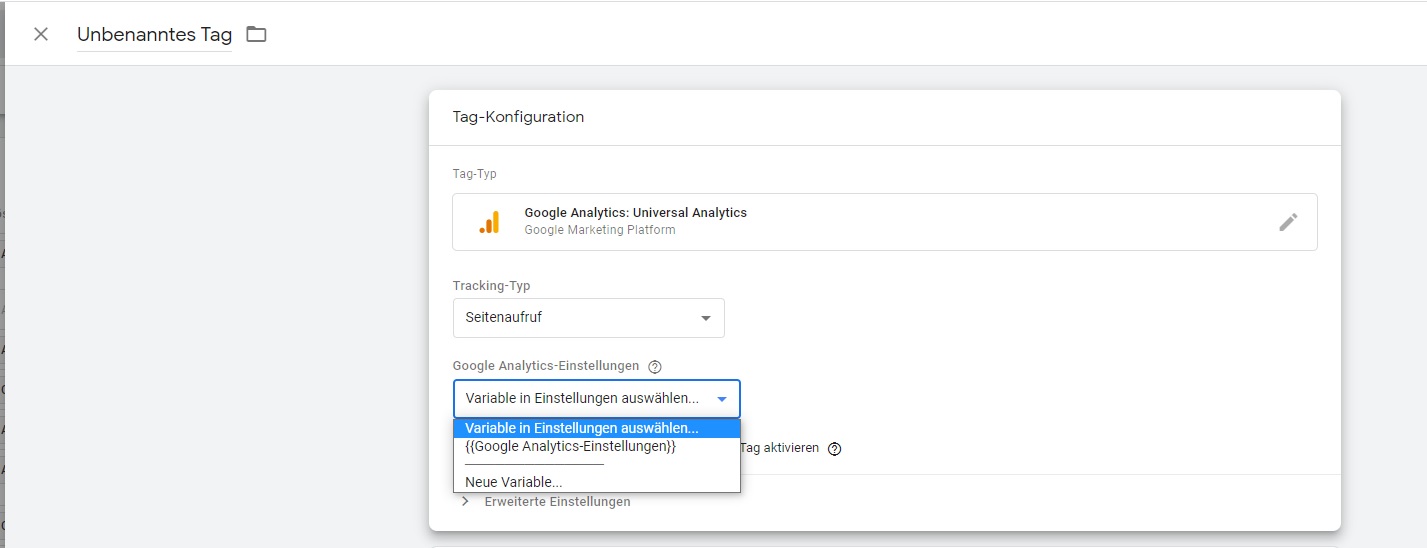
After we have defined the type, we of course have to tell the tag where we want to send the data. So our ID of the desired Analytics Property.
You can find this ID directly in the Google Analytics interface under Settings / Property Settings.
We now have the option to create a so-called Google Analytics Settings Variable or to enter the tracking ID directly.
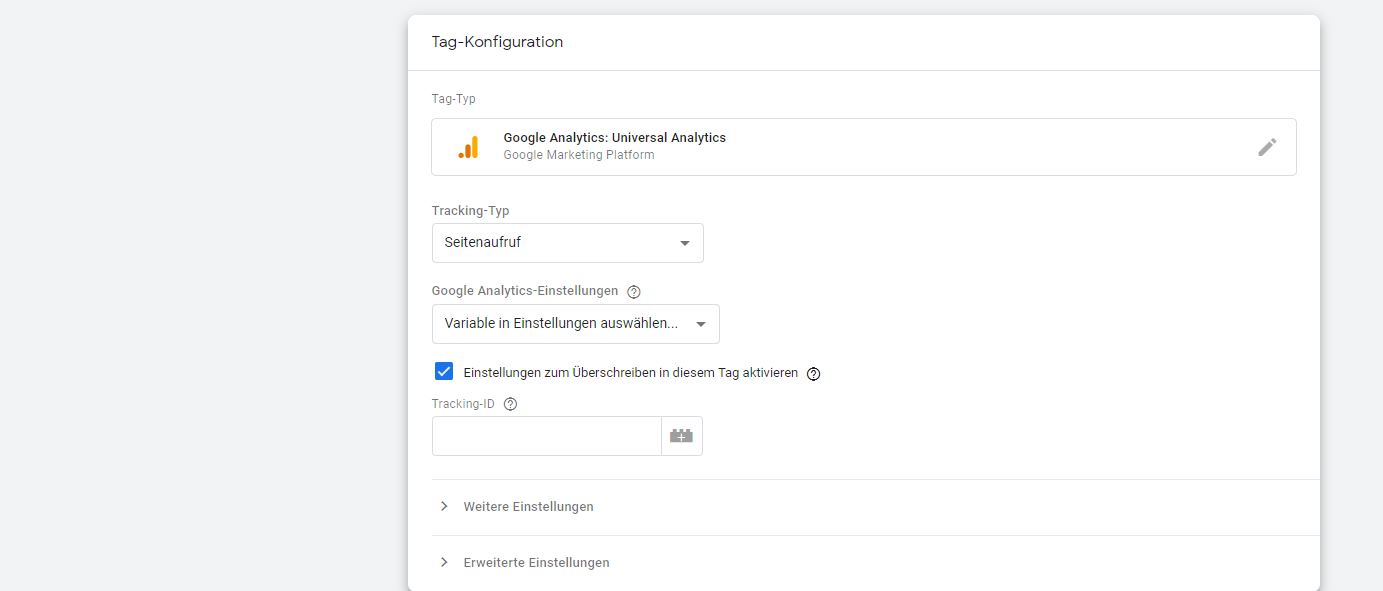
Using variables in Google Analytics settings makes it convenient to use and maintain settings in multiple tags. To set separate settings for this tag, tick the box below to override the default settings. If you do not select a variable in the Google Analytics settings, you will need to set the tracking ID via the Override settings.
If we don’t want to use Analytics variable, we can tick the following checkbox and enter the ID there manually.
As a last step, we need to select the correct trigger.
If you want to fire Google Analytics on all pages (is the most common approach if you don’t have Analytics installed yet), then you just need to select the trigger (All Pages).
This trigger is created by default and is available immediately.
Now all you have to do is save the tag and publish the GTM.
Congratulations, you have installed Google Analytics via Google Tag Manager.
Attention! If you act DSGVO compliant, you should definitely have a Consent Management in place, which of course fires the tag only after the user’s consent.



"Glad to welcome you to our website. Any questions? Why not give me a call right now with no obligation and we can discuss your concerns in person."